GTA San Andreas Controls: The Complete PC, Console & Mobile Guide (2026)
Nothing kills momentum in your first hour with GTA San Andreas quite like not knowing which key fires your weapon, or fumbling three attempts just to get CJ into a car. The game never really bothers explaining itself, and the control scheme changes depending on whether you’re on the original PC release, the Definitive Edition, a console, or a phone. This guide puts every GTA San Andreas controls scheme in one place so you’re not pausing every five minutes to dig through a menu.
Below is the full on-foot, vehicle, combat, swimming, cycling, and flying control layout for PC, the classic PS2/Xbox scheme, the modern Definitive Edition layout, and mobile touch controls, plus how to remap anything that feels off.
San Andreas throws more variety at you than most games in the series: driving, flying, swimming, cycling, and gunfighting, sometimes all within the same mission. A scheme that feels great in a shootout can suddenly feel clumsy the second you’re piloting a Rustler over Las Venturas, so it pays to actually learn each control category rather than muddling through on instinct.
Visit Now: https://gtasanguide.site/
Why GTA San Andreas Controls Feel Confusing at First
A lot of the confusion just comes down to the game’s age. GTA San Andreas controls were built around a PS2 controller in 2004, ported to PC with a keyboard-and-mouse layout that didn’t always feel intuitive, then reworked again for the 2021 Definitive Edition with more modern conventions. Learn the game on one version and switch to another, and your muscle memory will actively work against you. A button that used to holster your weapon might now switch targets instead.
First step: figure out which scheme you’re actually on. Bought it recently through Steam, Rockstar Games Launcher, or a current-gen console? You’re almost certainly on the Definitive Edition’s Modern Scheme. Running the original 2004 release, or playing on a PS2 or original Xbox? That’s the Classic Scheme.
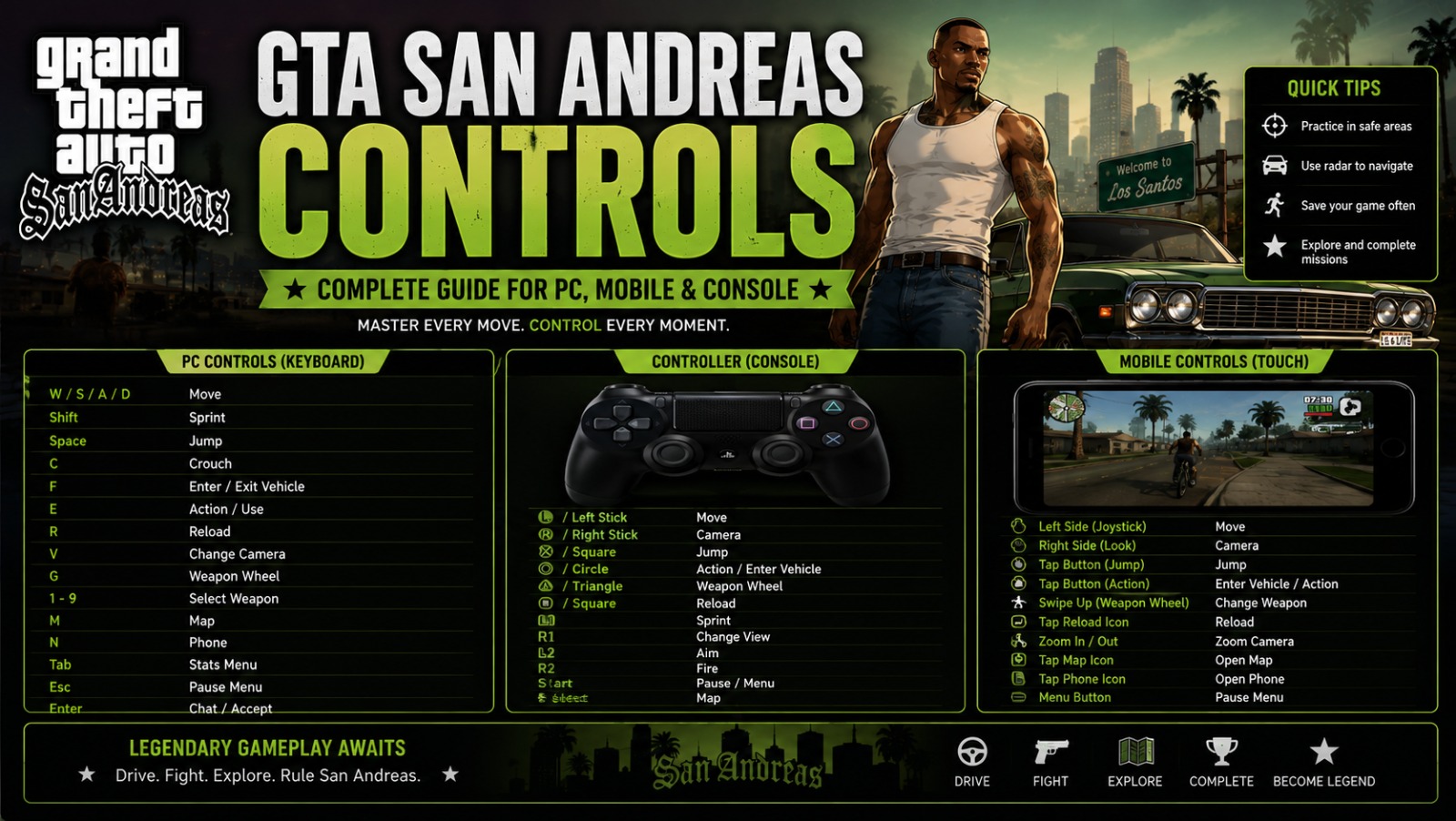
GTA San Andreas Controls for PC (Classic / Original Release)
These are the default GTA San Andreas controls for the original PC port. Every action below can be rebound through the in-game Controller Configuration menu if the defaults don’t suit you.
On-Foot Controls (PC)
| Action | Key |
| Move | W / A / S / D |
| Sprint | Shift (hold while moving) |
| Jump | Spacebar |
| Aim | Right mouse button |
| Fire | Left mouse button |
| Enter/exit vehicle | Enter |
| Crouch | C |
| Look behind | Middle mouse button |
| Next weapon | Mouse wheel up |
| Previous weapon | Mouse wheel down |
| Sprint + attack (melee) | Left mouse button while running |
| Map | Tab |
| Pause menu | Esc |
Vehicle Controls (PC)
| Action | Key |
| Accelerate | W |
| Brake / Reverse | S |
| Steer | A / D |
| Handbrake | Spacebar |
| Horn | E |
| Look left / right | Q / E (hold) |
| Change radio station | K / comma / period |
| Exit vehicle | Enter |
| Fire weapon from vehicle | Left mouse button |
| Motorcycle lean | A / D while moving |
Aiming & Combat Controls (PC)
| Action | Key |
| Aim freely | Right mouse button |
| Auto-aim / lock target | Hold right mouse button near enemy |
| Cycle targets | Q |
| Fire | Left mouse button |
| Crouch while aiming | C |
| Melee attack | Left mouse button (no weapon equipped) |
Swimming Controls (PC)
| Action | Key |
| Swim forward | W |
| Dive underwater | S (while swimming) |
| Surface | W (repeated) |
| Change direction | A / D |
Bicycle Controls (PC)
| Action | Key |
| Pedal | W |
| Brake | S |
| Steer | A / D |
| Stand and sprint | Shift + W |
| Bunny hop | Spacebar |
Plane & Helicopter Controls (PC)
| Action | Key |
| Throttle up | W |
| Throttle down | S |
| Bank left / right | A / D |
| Pitch up / down | Mouse movement |
| Fire weapons (if armed) | Left mouse button |
| Landing gear | G |
GTA San Andreas Controls for the Definitive Edition (Modern Scheme)
If you’re playing the remaster on PC, PS4, PS5, Xbox One, or Xbox Series X|S, the layout has shifted to match more recent Rockstar titles like GTA V. The underlying GTA San Andreas controls logic hasn’t changed much, but a handful of key actions have moved:
- Aim now typically sits on the left trigger (LT/L2) on console, or the held right mouse button on PC, closer to modern third-person shooter conventions
- Sprint is a single tap-and-hold in some configurations rather than a toggle
- Movement feels smoother overall thanks to updated animation blending, even though San Andreas never had a real cover system
- Weapon wheel replaces the old mouse-wheel cycling, so you can pick a weapon directly instead of scrolling through the whole inventory
If the Modern Scheme feels off because you learned Classic years ago, there’s actually a toggle in the Definitive Edition to switch back closer to the original feel. Check Settings > Controls before assuming you’re stuck with the new layout.
Read More: GTA San Andreas Girlfriend Gifts: The Relationship Math and Strategy Most Players Miss
GTA San Andreas Controls for PS2 & Original Xbox (Classic Console Scheme)
For players on original hardware or emulators, the classic console GTA San Andreas controls break down like this:
| Action | PS2 | Xbox |
| Move | Left analog stick | Left analog stick |
| Sprint | X (tap repeatedly) | A (tap repeatedly) |
| Jump | Triangle | Y |
| Enter/exit vehicle | Triangle | Y |
| Aim | R1 | White |
| Fire | R1 + Square | White + X |
| Crouch | R3 (click stick) | Left stick click |
| Look behind | R3 + L3 | Both sticks |
| Handbrake (in vehicle) | X | A |
| Radio station | L1 / R1 | Black / White (in vehicle) |
Xbox 360 rereleases swap White/Black for LB/RB, and the Definitive Edition on Xbox Series X|S maps those same actions to LT/RT. Worth double-checking which exact version you’re holding a controller for before you try to memorize any of this.
Mobile Touch Controls (Android & iOS)
Mobile GTA San Andreas controls trade physical buttons for an on-screen HUD. Here’s what you’re actually looking at:
- Virtual joystick on the left side handles movement
- Fire/action button on the right side is context-sensitive: it fires, enters a vehicle, or interacts depending on what’s in front of you
- Weapon wheel icon cycles with a tap or opens the full selection wheel on a hold
- Camera drag: swipe the right half of the screen to look around
- Auto-aim toggle lives in Settings and it’s genuinely worth turning on, since aiming manually with a thumb is rough
Combat missions are where mobile controls struggle the most compared to driving or exploring. If a shooting mission keeps beating you on mobile, dig into Settings for “Auto-Aim: Full” before you keep retrying the same way. It helps more than people expect.
How to Remap Your Controls on PC
If your default GTA San Andreas controls don’t match how you naturally play, which is common if you’re coming from a modern shooter, remapping takes under a minute:
- Open the game and go to the pause menu
- Select Options, then Controller (this covers keyboard bindings too on the original release)
- Choose Redefine Controls
- Pick the action you want to change and press whatever key you’d rather use
- Repeat for anything else, then save and back out
On the Definitive Edition this lives under Settings > Controls instead, with separate tabs for keyboard/mouse and gamepad if you switch between the two.
Recommended Control Tweaks for Beginners
A handful of small changes make a real difference for new players:
- Turn on auto-aim if you’re on mobile or struggling with manual targeting. It’s not cheating, it’s the assist the game was built around for casual play.
- Only invert the Y-axis if you’re used to flight-sim conventions. Most players do better leaving it default for driving and on-foot aiming.
- Drop your mouse sensitivity a bit on PC if you keep overshooting targets. San Andreas ships with a higher default sensitivity than most modern shooters.
- Rebind sprint to a toggle if you’re on the original release and your hand starts cramping during long chases.
- Practice driving in an empty lot before your first police chase mission. The handling here is looser than GTA V, and that catches a lot of newcomers off guard.
GTA San Andreas Controls for Specific Mission Types
Some missions punish sloppy inputs harder than others, so it helps to know what to expect from your GTA San Andreas controls before you attempt them cold.
Driving School
These missions grade you on precision: tight turns, reverse parking, controlled braking. Since the vehicle handling is looser than GTA V’s, tap the brake instead of holding it through sharp corners, and use small, repeated steering taps rather than holding A or D all the way. Players coming from newer racing games tend to over-steer here because they’re used to tighter, more forgiving handling.
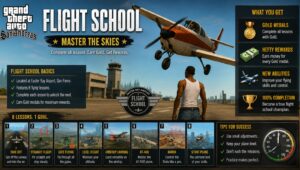
Flying School
This is where most people struggle, mainly because pitch is mouse-controlled on PC while throttle and banking sit on the keyboard, a split input setup that takes a few tries to feel natural. Keep mouse movements small; big, fast swings translate into overcorrection at altitude. On console, the same logic applies to the analog stick. Small nudges beat full deflection every time.
Boat School
Boats handle a lot like cars (W/S for throttle, A/D to steer), but momentum carries much further on water than it looks like it should, so start braking earlier than instinct tells you to.
Combat-Heavy Missions
In sustained gunfights, cycling targets efficiently matters more than raw aim speed. Get comfortable with the target-cycle key (Q by default on PC) instead of manually re-aiming at every new enemy. Letting the lock-on system do the work is faster and more reliable than free-aiming through a firefight.
Controller or Keyboard: Which Should You Use on PC?
This comes up a lot once people realize PC supports both, and there’s no single right answer. Keyboard and mouse tend to win for aiming precision, since a mouse simply gives you finer control than an analog stick ever will, and San Andreas has plenty of shooting missions where that precision matters. A controller usually wins for driving, flying, and general movement, since analog input handles acceleration and turning far more naturally than a keyboard’s binary on/off key presses.
A lot of experienced players actually switch between the two depending on the mission: mouse and keyboard for combat missions, controller for anything vehicle-heavy. Both the original PC release and the Definitive Edition support hot-swapping between input devices without restarting the game, so there’s nothing stopping you from keeping a controller nearby even if keyboard is your default.
Read More: GTA San Andreas Download for PC & Android: The Complete Safe Guide (2026)
Common Control Problems and How to Fix Them
Character won’t enter a vehicle: Face the driver’s-side door directly and get closer than you’d think necessary. The vehicle-entry hitbox here is stricter than in later GTA games.
Aiming feels sluggish on PC: Check your mouse polling rate alongside your in-game sensitivity. A low polling rate can make even a well-configured setup feel delayed.
Controller not detected on PC: Plug it in before launching the game rather than after. The original engine tends to only recognize input devices that were already connected at startup.
Keybinds reset after an update: Happens sometimes after a patch on Steam or Rockstar Games Launcher. Just redo the Redefine Controls steps and save again.
Motorcycle steering feels too twitchy: Lower steering sensitivity a notch in Settings, and avoid holding full throttle through tight turns. Bikes here are more sensitive to steering input than cars are.
Comparing All the Schemes at a Glance
With four different setups floating around (Classic PC, Definitive Edition Modern, Classic Console, and Mobile Touch) it’s easy to lose track of which one you’re actually on. Quick gut-check: WASD movement with mouse aiming means PC. A controller with face buttons matching Xbox or PlayStation, plus visibly sharper lighting, usually means you’re on the Definitive Edition’s Modern Scheme. If the visuals look closer to the original PS2 release and the buttons are labeled Triangle/Square/Circle/X or their Xbox equivalents, that’s the Classic Console Scheme. And if you’re tapping a screen instead of pressing anything physical, that’s Mobile Touch: a virtual joystick plus a few context-sensitive buttons.
Worth bookmarking this if you bounce between platforms, since playing on PC at home and mobile on your commute means switching control logic each time, and it’s easy to forget which scheme applies where after a few weeks away.
Conclusion
Once you’ve got the controls down, whether that’s Classic PC, the Definitive Edition’s Modern layout, console defaults, or mobile touch, the rest of the game opens up a lot faster. Missions that felt clunky because of fumbled inputs start feeling manageable, and you’ll spend less time redoing objectives over a missed button press. From here, check our cheat codes list if you want to skip some of the grind, or our weapons guide once you’re ready to plan combat loadouts now that you can actually aim where you’re pointing.
No control scheme is really “wrong” once you’ve rebound it to fit your own habits. The defaults are just a starting point. Plenty of longtime players run customized bindings that would look completely unfamiliar to a newcomer but feel natural after a few hundred hours in Los Santos. If the default layout keeps tripping you up mission after mission, don’t just push through it out of habit. Open Settings and change it. The whole point of remappable controls is that the game fits your hands, not the other way around. Give yourself an hour of low-stakes free-roam after any major rebind so the new muscle memory settles in before you head back into story missions where mistakes actually cost you progress.
FAQ’s
1. What are the default GTA San Andreas controls on PC?
Movement uses WASD, aiming uses the right mouse button, firing uses the left mouse button, and entering vehicles is bound to Enter by default on the original release.
2. How do I change GTA San Andreas controls on PC?
Go to the pause menu, select Options (or Settings on the Definitive Edition), then Controller or Controls, and choose Redefine Controls to rebind any action.
3. Are GTA San Andreas controls different on the Definitive Edition?
Yes, the remaster uses a Modern Scheme closer to GTA V’s conventions, though most versions include a setting to switch back toward the Classic Scheme if you prefer the original feel.
4. What button enters a vehicle in GTA San Andreas?
On PC it’s Enter by default; on PS2 and original Xbox it’s Triangle or Y respectively, and on the Definitive Edition it’s typically the same face button used for interactions. (GTA San Andreas Controls)
5. How do I aim better with GTA San Andreas controls on a keyboard and mouse?
Lower your in-game mouse sensitivity slightly, keep auto-aim assist on if you’re new, and practice against stationary targets before attempting fast-moving combat missions. (GTA San Andreas Controls)
6. Why do my GTA San Andreas controls feel delayed on PC?
This is usually a mouse polling rate or frame rate issue rather than the game itself. Capping your frame rate to match your monitor’s refresh rate often smooths this out. (GTA San Andreas Controls)
7. What are the swimming controls in GTA San Andreas?
W moves you forward and toward the surface, S dives you deeper underwater, and A/D steer your direction while swimming.
8. How do plane and helicopter controls work in GTA San Andreas?
Throttle is controlled with W/S, banking uses A/D, and pitch is controlled with mouse movement on PC. Console uses the analog sticks for the same functions.
9. Can I use a controller with the original PC version of GTA San Andreas?
Yes, most modern controllers work through Steam Input or Windows’ native controller support, and bindings can be adjusted the same way as keyboard controls. (GTA San Andreas Controls)
10. What’s the sprint button in GTA San Andreas?
On PC it’s typically Shift held while moving, and on PS2/Xbox it’s rapid taps of X or A respectively while running. (GTA San Andreas Controls)
11. How do I fix GTA San Andreas controls not working after an update?
Reopen the Redefine Controls menu and re-save your bindings. Patches occasionally reset custom keybinds back to default.
12. Are mobile GTA San Andreas controls customizable?
Yes, touch control size and position can usually be adjusted in Settings, and enabling auto-aim significantly improves combat sections on touchscreens. (GTA San Andreas Controls)
13. What’s the difference between Classic and Modern control schemes?
The Classic Scheme reflects the original 2004 PS2/Xbox and PC layout, while the Modern Scheme in the Definitive Edition shifts several bindings to match newer Rockstar titles like GTA V.
14. How do I crouch in GTA San Andreas?
On PC it’s typically C, and on console it’s usually done by clicking the left analog stick (L3), though this can vary slightly by platform and edition. (GTA San Andreas Controls)
15. Why can’t I hit anything even though my GTA San Andreas controls are set up correctly?
San Andreas’s manual aiming has a learning curve distinct from more modern shooters. Try enabling auto-aim assist temporarily while you build muscle memory for manual targeting.